
Need to check your Symfony version? Here’s how you can do it quickly:
-
Command Line:
Runphp bin/console --version(Symfony 3+) orphp app/console --version(Symfony 2).
Example output:Symfony 5.3.6 (env: dev, debug: true) -
Project Files:
-
Look for the
VERSIONconstant inKernel.php(e.g.,const VERSION = '5.0.4';). -
For Symfony 1.x, check
sfCoreAutoload.class.php.
-
Look for the
-
composer.json:
-
Check the
requiresection forsymfony/framework-bundle(e.g.,"^5.4"). -
Use
composer show symfony/framework-bundleto confirm the installed version.
-
Check the
-
Automate:
Use scripts to extract the version from the command line or project files for CI/CD pipelines.
Quick Comparison of Methods
| Method | Pros | Cons |
|---|---|---|
| Command Line | Fast and direct | Requires server access |
| Project Files | Works offline | Manual effort needed |
| composer.json | Dependency details | May show version ranges |
Pick the method that suits your access and environment. For automated monitoring, consider tools like Inspector.
Let’s dive into the details below.
Check Symfony Version via Command Line
Using the command line is the fastest way to find out your Symfony version. The commands differ slightly depending on whether you’re using Symfony 2 or 3+.
Commands for Symfony 2 and 3+
-
Symfony 3+:
php bin/console --version -
Symfony 2:
php app/console --version
Both commands will show the version, environment, and debug status[2][6].
Example output:
Symfony 5.3.6 (env: dev, debug: true)
Differences by Operating System
Although the commands work across platforms, the path syntax changes depending on your operating system:
| Operating System | Command Syntax |
|---|---|
| Linux/macOS | php bin/console --version |
| Windows | php bin\console --version |
Troubleshooting
If you encounter issues, try these steps:
- Ensure you’re in the project’s root directory.
- Check that PHP is installed and working.
-
Run
composer installto install missing dependencies. -
Test both
app/consoleandbin/consolecommands.
Extracting Symfony Version for Automation
For CI/CD pipelines or automation, you can programmatically extract the Symfony version using a script like this:
symfony_version=$(php bin/console --version | awk '/Symfony/ {print $2}')
If you can’t access the command line, you can still check the version by examining your project files.
Check Symfony Version in Project Files
If you can’t access the command line, you can still find the Symfony version by checking specific project files. This approach is especially helpful in automated systems or restricted environments.
Locate the Version in the Kernel File
For Symfony 3 and later, the version information is stored in the Kernel.php file. You can find this file in one of these locations:
-
vendor/symfony/http-kernel/Kernel.php -
vendor/symfony/symfony/src/Symfony/Component/HttpKernel/Kernel.php
Open the file and look for the VERSION constant, which will display the Symfony version. For example:
const VERSION = '5.0.4';
You can also automate this process with a script:
<?php
$kernelFile = __DIR__ . '/vendor/symfony/http-kernel/Kernel.php';
if (file_exists($kernelFile)) {
    $content = file_get_contents($kernelFile);
    if (preg_match("/const VERSION = '(.+)'/", $content, $matches)) {
        echo "Symfony Version: " . $matches[1];
    }
}
This script reads the file, extracts the version, and displays it.
Check Versions Older Than Symfony 2
If you’re using a Symfony version older than 2.0, look for the version in the sfCoreAutoload.class.php file. This file is typically located at:
lib/vendor/symfony/lib/autoload/sfCoreAutoload.class.php
Inside, you’ll find a line like this:
define('SYMFONY_VERSION', '1.4.21-punkave');
If you’re unable to find the version through these files, you can try checking the composer.json file for more details [1][6].
Check Symfony Version in composer.json
If you can’t access the command line or project files, you can check Symfony’s version by examining the composer.json file for dependency constraints.
Locate Symfony Package Versions
To determine your Symfony version, look for the symfony/framework-bundle entry in the require section of composer.json. This package usually reflects the Symfony version your project is using[3].
{
    "require": {
        "symfony/framework-bundle": "^5.4"
    },
    "extra": {
        "symfony": {
            "require": "6.0.*"
        }
    }
}
Here’s what the version constraints mean:
-
^5.4: Covers versions from 5.4 up to (but not including) 6.0. -
5.4.*: Any version within the 5.4.x range. -
6.0.*: Any version within the 6.0.x range.
To confirm the installed version or see dependency constraints, you can run these commands:
-
composer show symfony/framework-bundle(shows the installed version) -
composer why symfony/framework-bundle(shows why the package is required)
Automate Version Checks in CI/CD
You can automate Symfony version checks in your CI/CD pipeline using a simple script:
<?php
$composerJson = json_decode(file_get_contents('composer.json'), true);
$symfonyVersion = $composerJson['require']['symfony/framework-bundle'] ?? null;

if ($symfonyVersion) {
    preg_match('/\d+/', $symfonyVersion, $matches);
    $majorVersion = (int)$matches[0];

    if ($majorVersion < 5) {
        exit(1); // Fail CI/CD if version is below 5
    }
}
This script extracts the Symfony version from composer.json and ensures it meets your minimum version requirement. If the version is below 5, it exits with an error to fail the pipeline.
For additional checks, use Composer’s built-in tools to identify outdated Symfony packages:
composer outdated "symfony/*" --direct
composer update --dry-run
These commands help you spot outdated dependencies and preview updates without making changes.
sbb-itb-f1cefd0
Monitor Symfony with Tools
Using monitoring tools makes it easier to keep track of Symfony versions and gain insights into application performance, saving time compared to manual checks.
Inspector Features for Symfony
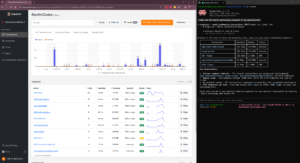
Inspector simplifies version tracking by automatically detecting and monitoring Symfony versions – no manual setup required. It offers a user-friendly dashboard that shows real-time version data alongside key performance metrics.
Here’s what Inspector brings to the table:
| Feature | Description |
|---|---|
| Version Detection | Automatically identifies Symfony versions |
| Dependency Analysis | Maps out package dependencies |
| Version History | Keeps a record of version changes |
| Custom Alerts | Sends notifications for updates or issues |
Inspector even offers a free plan for smaller projects, making it accessible to developers with varying needs.
Comparing Version Check Methods
Different methods for checking Symfony versions come with their own pros and cons:
| Method | Pros | Cons |
|---|---|---|
| CLI Commands | Fast and provides instant results | Requires server access |
| File Checks | Simple and works offline | Requires manual effort |
| Inspector | Automated and continuous | Relies on an external service |
Inspector doesn’t just stop at version tracking. It delivers performance insights such as:
- Response times for requests
- Efficiency of database queries
- Patterns in memory usage
- Systems for error detection
Additionally, Inspector integrates seamlessly with CI/CD pipelines through its API, helping block incompatible versions before deployment. Its centralized dashboard makes managing multiple projects straightforward and efficient.
Fix Common Version Check Problems
If the earlier methods don’t resolve your issues, these targeted fixes can help with specific errors:
Fix Missing Command Errors
Encountering a "Command not found" error? Try these steps:
- Verify that your console path aligns with your project structure.
-
Reinstall dependencies by running:
composer install
Handle Missing Files
If Kernel.php is missing (commonly used in file-based checks), here’s how to restore it:
| Issue | Solution |
|---|---|
Kernel.php missing |
Retrieve it from version control. |
| Corrupted installation | Run composer require symfony/symfony. |
For developers using Symfony 6.1 as of June 2022, updating the symfony/flex package to version 2.2.2 or later resolved detection problems [9].
Decode Unclear Version Numbers
Struggling with ambiguous version information? Use these methods:
-
Inspect the
VERSIONconstant in theKernelclass:const VERSION = 'X.Y.Z'; -
Run Composer to list installed Symfony packages:
composer show symfony/* -
Clear the cache to ensure accurate results:
php bin/console cache:clear
"The fix, implemented by Fabien Potencier, involved updating the symfony/flex package to version 2.2.2 or higher. This resolved version detection problems for thousands of developers using Symfony 6.1." [9]
Summary
Here’s how you can check your Symfony version effectively:
- Command Line: Ideal for quick checks during development.
- Project Files: A solid offline option.
- composer.json: Provides details about dependencies.
Among these, using the command line is usually the fastest and most accurate method for modern Symfony setups. If command line access isn’t an option, looking into project files is a reliable fallback. Specifically, the Kernel.php file is a go-to source for version details, especially in deployment environments where console commands might be restricted.
For teams juggling multiple Symfony projects, tools like Inspector can simplify version tracking by automating the process. Pick the method that aligns with your access and environment needs.
For common issues and solutions, check out the FAQs below.
FAQs
How do I find my Symfony version?
To quickly check your Symfony version, open your command line and run:
php bin/console --version
Make sure you’re in your project’s root directory. If you encounter issues, check out the "Symfony 3+ Version Check" section for guidance.
How can I check my Symfony version without using the command line?
If you don’t have access to the command line, you can verify your Symfony version by inspecting your project files:
-
Look for the
VERSIONconstant in theKernel.phpfile. -
Check the
composer.jsonfile for Symfony-related dependencies.
For more details, see the "Check Symfony Version in Project Files" section.
How to check the current Symfony version?
The method you choose depends on your access:
If you have command line access:
Run php bin/console --version to see the version instantly.
If you don’t have command line access:
-
Review the
composer.jsonfile for dependencies. -
Inspect the
Kernel.phpfile for theVERSIONconstant. - Use Composer commands to identify the version.
For automated checks, explore the "Add Version Checks to CI/CD" section.